AI Filmmaking
How to Make a Long AI Film (Up to 30 Minutes)
Most AI video tools cap out around 5 minutes. Here's how to plan, storyboard, and render a long AI film of up to 30 minutes with MakeFilms, step by step.
By MakeFilms Editorial · 7 min read ·
AI video has gotten very good at short moments: a sweeping drone shot, a character turning toward the camera, a few seconds of a dragon in flight. Telling a whole story is harder. Most AI video tools are built around clips, and many top out at roughly five minutes of finished runtime. That's fine for a social post. It isn't enough for a short film, a pilot episode, or a festival submission.
MakeFilms was built for longer work. According to the company, you can make films of up to 30 minutes on the platform, compared with the roughly 5-minute caps common on other tools. This guide shows how to plan and produce a long AI film without losing your story, your characters, or your budget along the way.
Why long AI films are hard
Rendering a single good clip is mostly a prompting problem. Making a 20- or 30-minute film is a production problem. The same issues that come up on a real set come up here:
- Continuity. A character's face, wardrobe, and voice have to hold across dozens or hundreds of shots.
- Structure. Long films need acts, scenes, and pacing. A string of beautiful clips won't add up to a story.
- Cost control. Every render costs credits and time, and at feature-like lengths, wasted takes add up fast.
- Organization. You need one place to track which shots are approved, which need another take, and how they cut together.
Clip-first tools leave all of that to you, usually in a pile of downloads and a separate editor. A long-form workflow puts it in one place.
Step 1: Start with a real script
Long films live or die on the page. Before you generate anything, write a script with clear scene headings, consistent character names, and visible action. A camera can film "Maya slides the phone across the table." It can't film "Maya feels betrayed."
For a 30-minute film, think in scenes, not shots. A rough rule from traditional screenwriting is about a minute of screen time per script page, so a 30-minute film is around 25 to 35 pages. Break it into three acts and give each scene one clear purpose.
If you're starting from an idea, draft scene by scene. MakeFilms' script-to-video workflow is designed to take a written script and turn it into a shot plan, so time spent on the page pays off directly. For more on writing, browse our screenwriting articles.
Step 2: Storyboard every scene before you render
This is the step people skip, and it's the one that matters most at length. A storyboard turns each scene into a sequence of shots: framing, camera angle, shot size, and key action. You can review all of them before you spend a single credit on video.
On a long project, storyboarding helps you:
- Catch pacing problems early. If a short exchange has turned into twelve shots, you'll see it right away.
- Lock continuity. Laying shots side by side makes wardrobe, lighting, and time-of-day mismatches obvious.
- Render only what you approve. You stop experimenting blind and only generate shots that earn their place.
We wrote a full walkthrough on this: How to Use an AI Storyboard Generator to Turn a Script Into Shots. You can also go straight to the AI storyboard generator.
Step 3: Define your characters and look once
Consistency across a long film comes from decisions you make up front. Before rendering, settle:
- Characters: a reference look for each principal character, including face, wardrobe, and distinguishing details.
- Locations: the key sets your story returns to.
- Style: a single visual style, such as cinematic live-action, anime, or stylized animation, applied across every scene.
Reusing the same references for every shot is what keeps scene 3 and scene 30 looking like the same film.
Step 4: Produce scene by scene in one workspace
With a script, storyboard, and references ready, open the Create form and start production. Work in passes rather than trying to render the whole film at once:
1. Render one scene at a time. Review every shot in the scene before moving on.
2. Re-take only what's broken. If one shot fails, regenerate that shot, not the whole sequence.
3. Track status. Keep a clear view of which shots are approved, pending, or need another take.
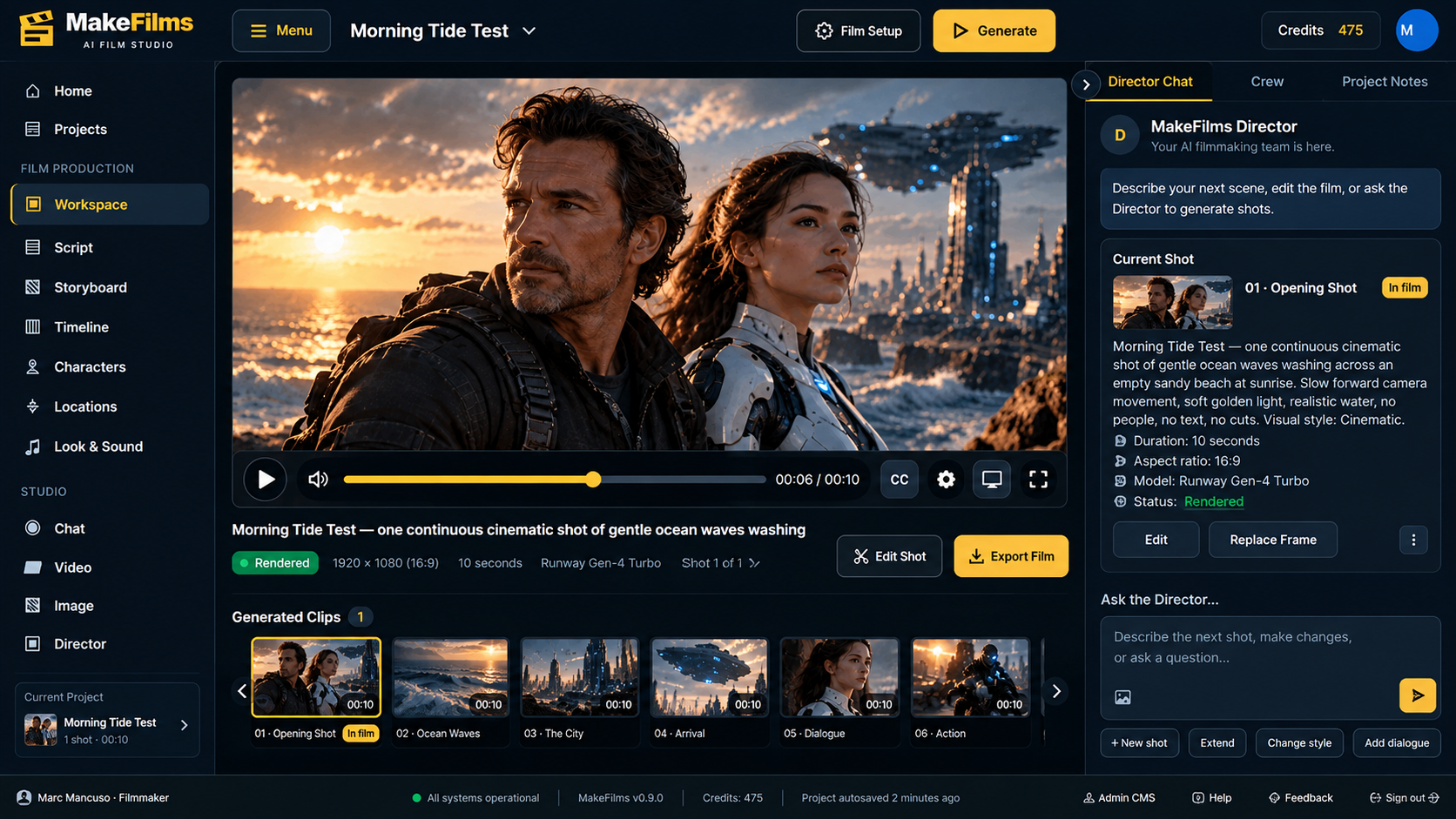
The MakeFilms workspace is built around this: a project holds your script, storyboard, and shots together, so a long film stays manageable. See how it fits together on the AI filmmaking software page.
Step 5: Assemble, pace, and polish
Once your scenes are approved, assemble them in order and watch the whole thing straight through. Long films expose pacing problems that individual clips hide. Look for:
- Scenes that overstay their purpose
- Repeated shot sizes that make sequences feel flat
- Transitions that jump in time or place without a cue
Trim hard. A tight 18-minute film beats a padded 30-minute one. The 30-minute limit is room to tell your story, not a target to fill.
What you can make with a longer runtime
A higher ceiling opens up formats that clip-length tools can't really handle:
- Short films for festivals and online premieres
- Pilot episodes and web series, including microdramas told across multiple episodes
- Trailers and proof-of-concept films for pitching a bigger project
- Branded films and long-form UGC that tell a story instead of looping a single shot
For inspiration, look at projects from the MakeFilms community, like the Get Back Up MMA movie and the drama series showcase, or browse more in creator showcases.
Common mistakes to avoid
- Prompting before planning. Without a script and storyboard, long projects drift and burn credits.
- Changing style midway. Pick a look and keep it.
- Re-rendering whole scenes for one bad shot. Fix the individual shot.
- Ignoring sound and pacing. A long film needs rhythm as much as it needs visuals.
Getting started
Making a long AI film is less about one perfect prompt and more about a solid production workflow: script, storyboard, consistent references, and scene-by-scene rendering in one place. MakeFilms is built for that workflow, and for runtimes the company says go up to 30 minutes.
For the full picture, start with The Complete Guide to AI Filmmaking with MakeFilms. When you're ready, create a free account or compare plans.
FAQ
How long can an AI film be on MakeFilms?
MakeFilms says its platform supports films of up to 30 minutes.
How does that compare with other AI video tools?
Many AI video tools focus on short clips, and according to MakeFilms they commonly cap out at around 5 minutes. Check each tool's current limits, since they change often.
Do I need a finished script to make a long AI film?
It helps a lot. You can start from an idea, but a scene-by-scene script makes storyboarding, continuity, and cost control much easier.
How do I keep characters consistent across a long film?
Define reference looks for your characters, locations, and style before rendering, and reuse them for every shot.
Should I storyboard before generating video?
Yes. Storyboarding lets you review and approve every shot before spending credits on rendering, which matters most on long projects.
What kinds of projects suit a 30-minute runtime?
Short films, pilot episodes, web series and microdramas, trailers, proof-of-concept pitches, and long-form branded or UGC content.