Tutorials & Guides
Consistent Characters in AI Video: A Step-by-Step Guide
Stop characters from changing between shots. Learn how to build character sheets, structure prompts and storyboard scenes for consistent AI video.
By MakeFilms Editorial · 8 min read ·
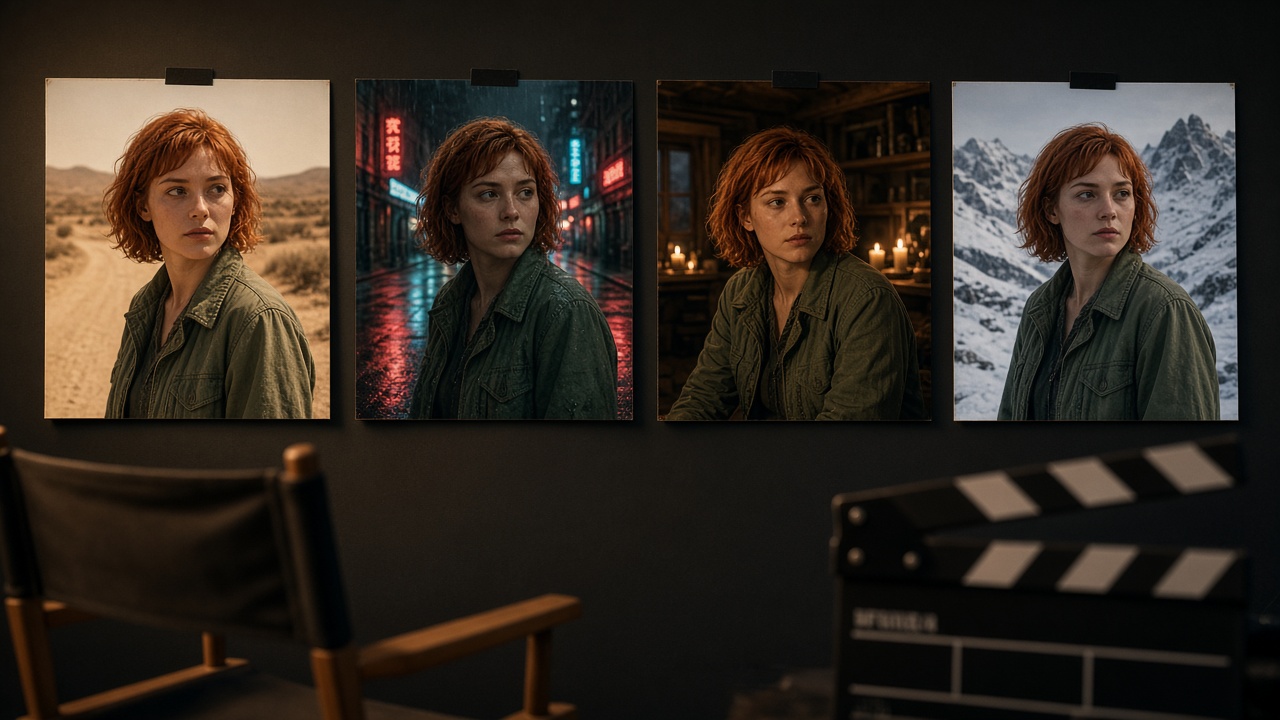
Getting consistent characters in AI video is the difference between a string of pretty clips and an actual film. Audiences forgive a lot, but they notice instantly when the hero's jacket changes color between shots, her hair grows six inches across a cut, or a supporting character quietly becomes a different person halfway through a scene. Video models generate each shot fresh, so continuity is not automatic. It has to be designed. This tutorial covers why characters drift, how to write a character sheet a model can follow, how to phrase prompts so identity holds from shot to shot, and how to plan a scene so you catch drift before it costs you credits.
Why AI Video Characters Drift Between Shots
Every generation is a new interpretation of your words. If a prompt says "a young woman in a jacket," the model fills in age, face shape, hair, jacket color and fabric on its own, and it will fill them in differently next time. Drift usually comes from four places:
- Vague descriptions. Anything you leave out is a decision the model makes for you, again and again.
- Inconsistent wording. Calling the same coat "green," then "olive," then "khaki" reads as three different coats.
- Competing details. Long prompts stuffed with set dressing and camera moves can crowd out the character description, so the model weights it less.
- Switching tools mid-scene. Different video models interpret the same text differently, so changing models between shots of one scene invites mismatches.
The fix for all four is the same habit: decide who your characters are once, write it down precisely, and reuse that exact language everywhere.
Step 1: Build a Character Sheet Before You Prompt
A character sheet is a short, fixed description you paste into every shot that features that character. Keep it to the visual details a camera can actually see. A good sheet covers:
- Identity anchors: approximate age, build, skin tone, face shape and one or two distinctive features (a scar, freckles, a gap in the teeth).
- Hair: color, length, texture and style, stated plainly ("short copper hair, choppy and shoulder-length").
- Wardrobe: each garment with a specific color and material ("faded olive-green canvas field jacket over a grey t-shirt").
- Signature props: anything the character always carries, described the same way every time.
- Movement and attitude: optional, but a phrase like "moves carefully, guarded posture" helps performance stay in character.
Here is an example sheet:
MAYA: woman in her late twenties, lean build, pale freckled skin, small scar above her left eyebrow, short choppy copper hair, faded olive-green canvas field jacket over a grey t-shirt, dark jeans, worn brown boots, silver compass on a cord around her neck.
Notice what is missing: no mood lighting, no location, no camera direction. Those change from shot to shot. The sheet only holds what should never change. If your script has several characters, write a sheet for each and give them clearly different silhouettes and palettes so they stay distinct even in wide shots. If you are still shaping the story itself, our guide on how to write a script for AI video covers writing scenes that are easier to film consistently.
Step 2: Write Prompts in a Fixed Order
Once you have a sheet, structure every shot prompt the same way. A reliable order is:
- Shot size and angle
- Character sheet, pasted word for word
- Action in this shot
- Location and time of day
- Lighting and style
Putting the character early keeps identity from being buried under scenery. Pasting the sheet verbatim matters more than it sounds: change "copper" to "auburn" in one shot and you have effectively asked for a new hairstyle. Keep a single source of truth, such as a notes file or the description fields in your project, and copy from it rather than retyping.
Be careful with wardrobe changes that the story actually requires. If Maya takes off her jacket in scene four, write a second version of her sheet ("MAYA, NO JACKET") and use that version for every shot after the change, so the new look is consistent too.
Keep the action simple
Complex actions such as spinning, fast turns or heavy occlusion give the model more chances to reinvent a face. When identity matters most, like a character's introduction or an emotional close-up, keep the movement small and the face clearly visible. Save the chaotic action for wider shots where small differences are less noticeable. Our camera angles for AI video guide explains which shot sizes are most forgiving.
Step 3: Lock the Look With Style and Model Choices
Character consistency is not only about the character. A shift in color grade or rendering style between shots can make the same person look different. Two decisions help:
- Pick one visual style per project. MakeFilms includes style presets, so you can apply the same look across every shot instead of describing it by hand each time and risking variations.
- Stick with one model per scene. MakeFilms gives you multiple video models to choose from. Test a couple on your character's introduction shot, pick the one that renders them best, and stay with it for the rest of that scene. If you want help choosing, read how to choose AI video models for filmmaking.
Step 4: Storyboard the Scene Before Generating
The cheapest place to fix a continuity problem is on the storyboard, before any video exists. Lay out every shot in the scene and check each one against your character sheets:
- Does every shot featuring Maya include her full sheet?
- Are wardrobe changes placed where the script says they happen?
- Do any shots ask for actions likely to distort a face in a close-up?
- Is the same style and model used throughout the scene?
The MakeFilms AI storyboard generator turns your script into a shot-by-shot plan, so you can review framing and descriptions as a sequence. Because MakeFilms shows the credit cost before each generation, you can also decide which shots deserve a retake budget, usually the close-ups and character introductions, before you commit.
Step 5: Review, Retake and Keep a Continuity Log
Even with careful prompts, some shots will drift. Review each clip against the first approved shot of that character, not against the previous clip, so small errors do not compound across a scene. When something is off, adjust one variable at a time: tighten the description of the feature that changed, simplify the action, or shorten the rest of the prompt so the character carries more weight.
Keep a simple continuity log as you go. Note which prompt wording produced the best version of each character, which model you used, and any phrasing that caused problems. On longer projects this log becomes your most valuable asset. MakeFilms supports films up to 30 minutes, and at that length you might generate hundreds of shots, so reusable, proven character language saves a lot of time. Our guide to making a long AI film goes deeper on managing a project at that scale.
Let the AI Director Carry Continuity Across Scenes
Doing all of this by hand works, but it is tedious. In MakeFilms, the AI Director works from your script to plan scenes and shots, which keeps characters, settings and style tied to the same story rather than to a pile of disconnected prompts. You still make the creative calls, such as approving the storyboard, choosing a model and picking a style preset, while the planning stays organized from the first scene to the last. If you want the full picture of that flow, see the script-to-video page.
Quick Checklist for Consistent Characters
- Write one visual character sheet per character and never paraphrase it.
- Put the character early in every prompt, in a fixed order.
- Create a new sheet version for every story-driven wardrobe change.
- Keep identity-critical shots simple and the face clearly visible.
- Use one style preset per project and one model per scene.
- Storyboard and check continuity before generating.
- Compare retakes to the first approved shot, and log what works.
Try It on Your Next Film
Consistent characters are what make viewers care about a story instead of just watching clips. Start with a character sheet, plan your scene on a storyboard, and let the AI Director keep the project organized. Start a film in MakeFilms today, or see the plans (from $19/month) to pick the one that fits your project.